AI Receptionist for Chiropractors and Busy Front Desks
Our AI receptionist for chiropractors answers forwarded calls, books appointments and takes messages while your team sees patients. It follows your office instructions and sends call details to you. Try the browser demo with a fictional new-patient request.
Try a new-patient call Request your free trial
Free trial on request: 14 days, up to 100 minutes.PrivacySecurity
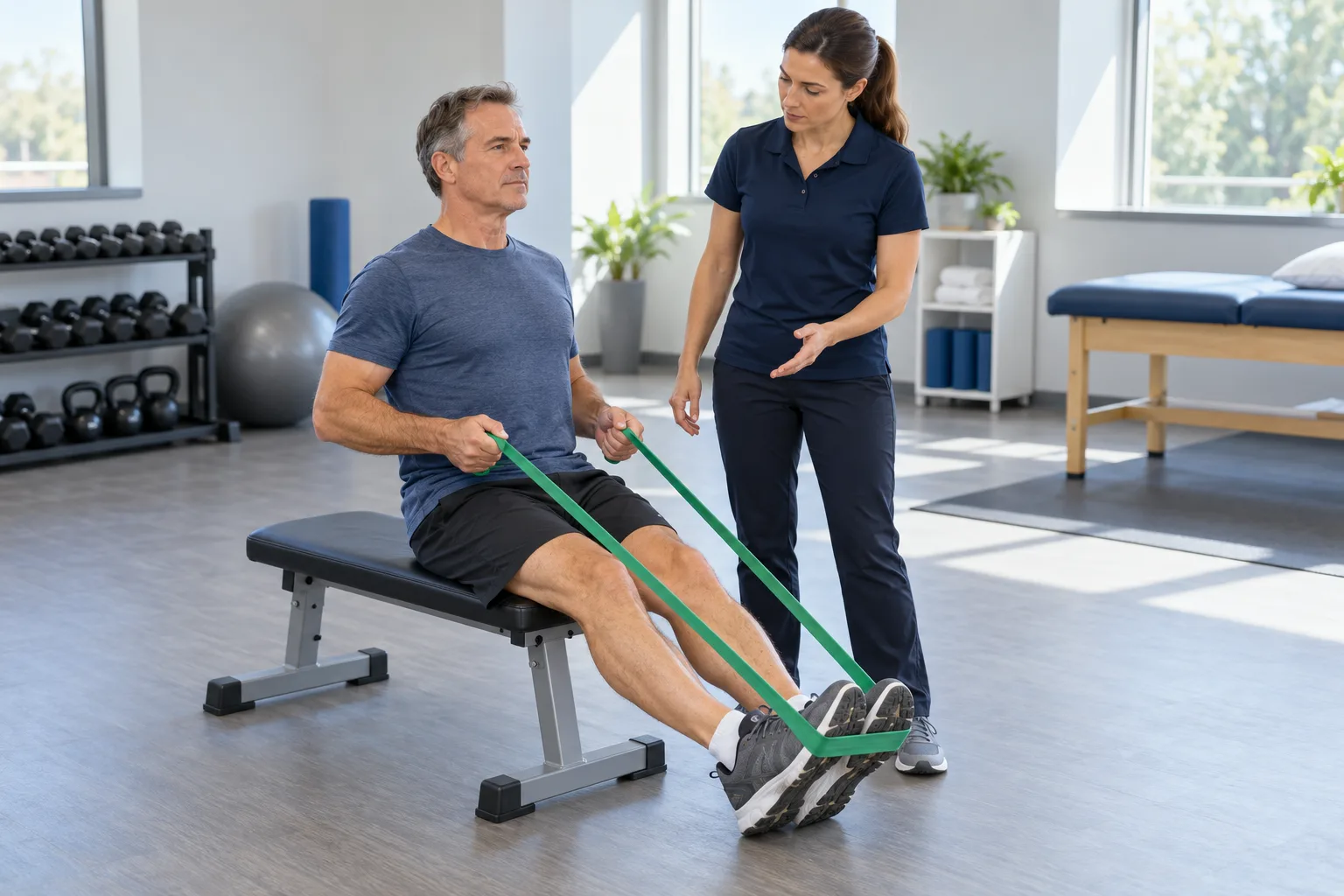
Give Your Front Desk Help During Patient Visits
Your receptionist handles front-desk requests using the services, hours and policies you provide. It answers as your practice, discloses that it is a virtual assistant, announces recording and sends your team the call details.
Answer routine questions
Give callers office information based on your stated policies.
Collect clear messages
Capture the request and callback details for your desk.
Keep staff informed
Send summaries, transcripts and recordings through email and app push.
See the details
An AI receptionist for chiropractic office calls needs clear instructions about the work your desk handles. We gather those instructions in onboarding: your services, service area, opening hours, price policy and urgent contacts. Your website supplies additional business information.
When a caller wants an appointment, the receptionist can book into Google Calendar or collect a request for your team. When the question needs a staff answer, it takes a message. You see the summary and supporting conversation in your alerts and dashboard. A free trial, available on request, gives you a practical way to review call handling and adjust the information your receptionist uses.
Take a New-Patient Call From Greeting to Booking
A new-patient call starts with the required notices, then moves to your intake questions and booking instructions. The receptionist books in Google Calendar or collects the details your desk needs to return the call.
Explain the next step
Follow your office's stated process for new appointments.
Offer your booking route
Use Google Calendar or collect a callback request.
Send the call record
Give your team the summary, transcript and recording.
See the details
In this fictional example, a made-up caller named Morgan asks for a first visit. Your receptionist introduces itself as a virtual assistant, announces recording and asks the intake questions you supplied. It uses your office information to explain the booking process.
If you chose Google Calendar booking, it follows that route. If your desk prefers to arrange first visits, it records Morgan's request and callback details for your team. It does not turn the booking conversation into a clinical assessment. Try the new-patient booking walkthrough to see how office instructions shape the conversation, then test a similar fictional request in the demo.
Send Insurance and Benefits Questions to Your Team
Insurance and benefits questions become messages for your front desk. Your receptionist records what the caller wants to know and how to reach them, leaving coverage verification and benefit explanations to your team.
Capture the question
Note what the caller wants your desk to check.
Keep a callback route
Collect contact details so your team can respond.
Leave verification to staff
The AI does not confirm coverage or benefits.
See the details
The receptionist notes insurance questions so your staff can answer them with the right information. You can teach it your office's stated price policy, but it does not verify a caller's coverage or decide what their plan will pay.
In a fictional call, a made-up patient named Casey asks whether a first appointment is covered. Your receptionist records the question and callback details rather than confirming a benefit. The summary tells your desk what needs checking, and the transcript preserves Casey's wording. See the insurance question handling details for the front-desk message flow you can try during setup.
Route Red-Flag Calls to Urgent Help and Alert Your Office
The receptionist follows safety scripts for red-flag symptoms, directing callers to urgent care or 911 first and then alerting your office. Clinical questions go to your on-call clinician without diagnosis, exercise advice or triage decisions.
Use safety scripts
Direct red-flag symptom callers to urgent care or 911 first.
Reach your clinician
Route clinical calls using the contact order you provide.
Leave advice to clinicians
Your receptionist takes messages without diagnosing or recommending exercises.
See the details
Red-flag calls follow a safety script rather than an assessment by the AI. Spreading numbness, loss of bladder or bowel control, or severe pain after an accident prompt directions to urgent care or 911 first, followed by an office alert. Medical emergencies go to 911 and crisis calls to 988.
For other clinical questions, including post-visit soreness, your receptionist takes the caller's message and follows your on-call clinician route. A warm transfer lets the clinician hear a short summary before accepting, or you can choose paging. It does not decide whether soreness is normal or suggest an exercise. Review your urgent symptom call setup before testing with fictional details.
Collect Reschedule Requests for Care-Plan Visits
Your receptionist takes reschedule requests and passes the details to your team. It can book appointments in Google Calendar, while your staff handles changes to existing visits in your practice's scheduling software.
Record the requested change
Capture which visit the caller wants to move.
Note preferred times
Give your desk useful details for the return call.
Preserve clinical decisions
Leave changes to treatment frequency or care plans with clinicians.
See the details
A reschedule request gives your desk the information to arrange a change. In this made-up example, fictional patient Taylor cannot attend a care-plan visit and asks about another afternoon. The receptionist notes the request, preferred timing and callback details for staff to review.
It does not change the prescribed care plan or advise Taylor to skip a visit. Your team makes changes in the scheduling system it uses. If your office uses ChiroTouch or Jane, you can enter the call summary there yourself; we do not offer a direct connection at launch. This keeps the message useful without promising automatic changes to an existing appointment.
Start With Calls During Your Adjustment Hours
You can start by forwarding busy or unanswered calls during adjustment hours. Set your office instructions, make a test call and review the messages before deciding whether to forward more of your calls.
Choose your starting coverage
Forward calls when your desk is occupied with patients.
Test office scenarios
Try fictional booking, insurance and urgent routing requests before launch.
Refine your instructions
Change hours, policies and contact settings by telling the AI.
See the details
Starting with adjustment-hour overflow gives you a defined set of calls to review. Choose busy or no-answer forwarding, teach your receptionist your office rules and test the route before going live. You can also choose after-hours forwarding or send all calls through.
Our healthcare position is the pending status (no business associate agreement is in place). Until that status is set, the service must not be used with protected health information. Use made-up details in testing, then review your setup before directing patient calls to it. Our browser demo works without signup; request a free trial for 14 days, capped at 100 minutes. A card will be required before forwarding goes live. Request your receptionist trial when you are ready; we'll email your sign-in link once the trial is ready.
Common questions
Can the receptionist book into my chiropractic schedule?
It can book appointments into Google Calendar or take the caller's details for your team to arrange a visit. There are no direct connections to practice-management software currently. Choose the booking route in onboarding and test a fictional first-visit request to check how it fits your desk's process.
Will it answer a patient's insurance coverage question?
It notes the question for your front desk and collects callback details. It does not verify coverage, explain a patient's benefits as confirmed or promise payment from an insurer. Your team receives the call summary and transcript so staff can review the question and return the call with an answer.
What happens when someone calls about post-visit pain?
Your receptionist records the concern and routes the clinical call to your on-call clinician according to your instructions. It does not diagnose the pain or give exercise advice. Safety scripts direct red-flag symptom callers to urgent care or 911 first, then alert your office about the call.
Can callers switch to Spanish during a call?
Yes. Your receptionist speaks English and Spanish, and callers can switch languages during the conversation. It uses your office instructions for the request, whether the caller needs an appointment or wants to leave a message. Include a language switch in your fictional demo conversation to hear how it works.
Can urgent calls reach the clinician on call?
Yes. You set the contact order and choose a warm transfer or paging. With a warm transfer, the on-call person hears a short summary and presses 1 to accept the call. Keep those contact instructions current and check the route with a test call before you go live.
Can I hear it before requesting a free trial?
Yes. The browser demo lets you talk to the receptionist without signing up. Use fictional patient details to try a new-patient request, an insurance question or a reschedule message. Request a free trial; we'll email the sign-in link when ready. Onboarding teaches it your business information, and a test call lets you review your setup.
Try Your Next Front-Desk Call in the Demo
Ask for a fictional first visit and hear how the receptionist responds. Request a free trial to add your own office instructions.